 COME
COME Latest Version Label or New Release: How to Tell
Latest Version is a status phrase. To decide whether a release is new for your phone, compare an actual version number and the information on the update page.
Read the Settings control
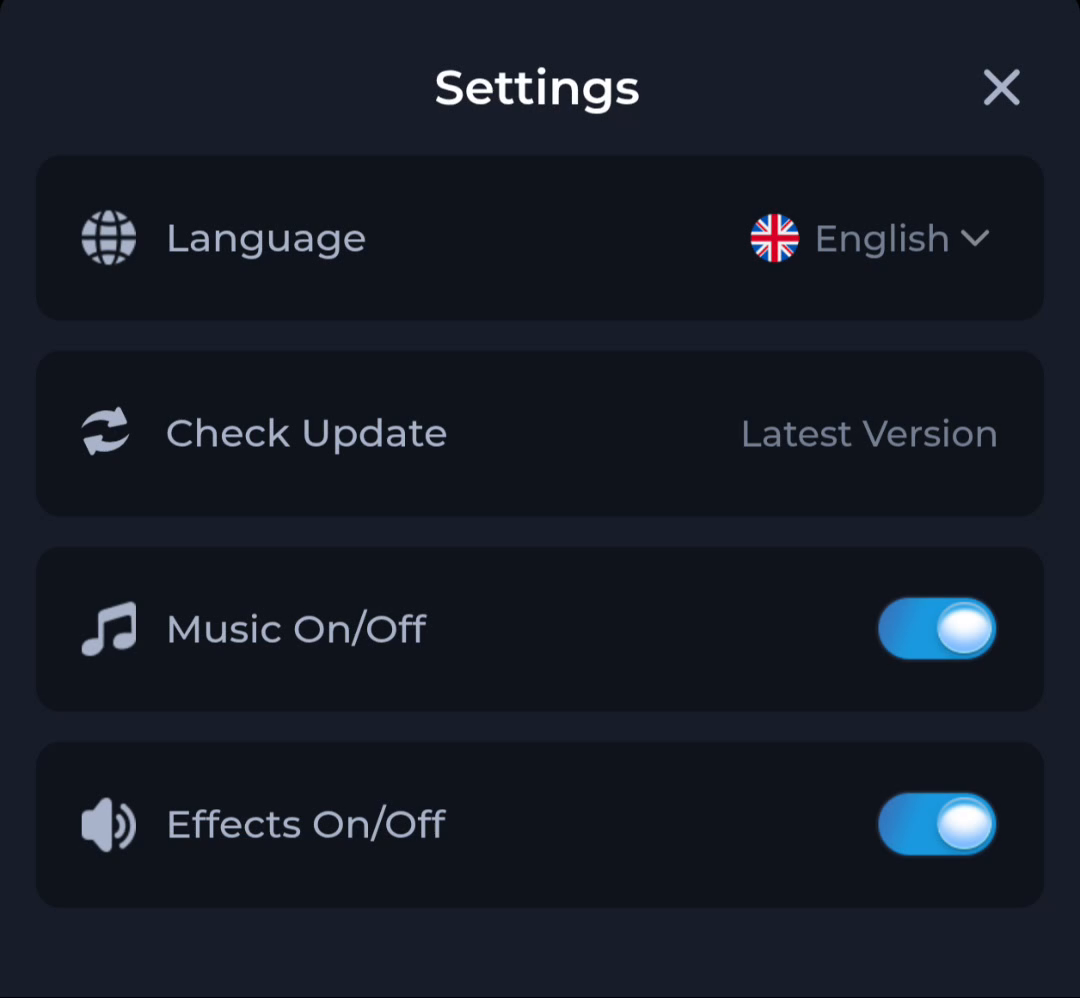
The screenshot places Latest Version beside Check Update. That wording describes the pictured interface. Your current update result should be read in the app and on the page it opens.
Use the right date
A download date tells you when the browser saved a file. A release date describes when that version was issued. A page-review date only describes when its information was checked. Keep those dates separate when making an update decision.
Compare the installed and offered versions
- Find the current app details on your device.
- Record a version number if one is shown.
- Open the update route and read its release information.
- Resolve any mismatch before opening the installation package.
Avoid changing a working installation too early
Keep account access available and leave the existing app installed while reviewing the update. If an error appears, note the exact message. Reinstalling immediately can remove useful information and create a separate sign-in task.
After the update
Open the app and check the installed details again. A successful download is not the same as a successful installation. If you see the same version as before, review the installer result rather than guessing that the update applied.
Continue with the right guide
Choose another topic in Guides, or return to the main steps when you are ready.